There are a few ways to grade an assignment: by individual submission, through the assignment screen, and through the gradebook. There are a few different ways to reach the grading screen and to grade the submissions. This article covers the following topics. Click on a link to jump to that topic:
- Getting to the Assignment grading summary page
- Direct grading from the Assignment grading summary page
- Quick grading from the Submissions page
- Grading from the Gradebook
- Advanced Grading Methods
Getting to the Assignment Grading Summary Page
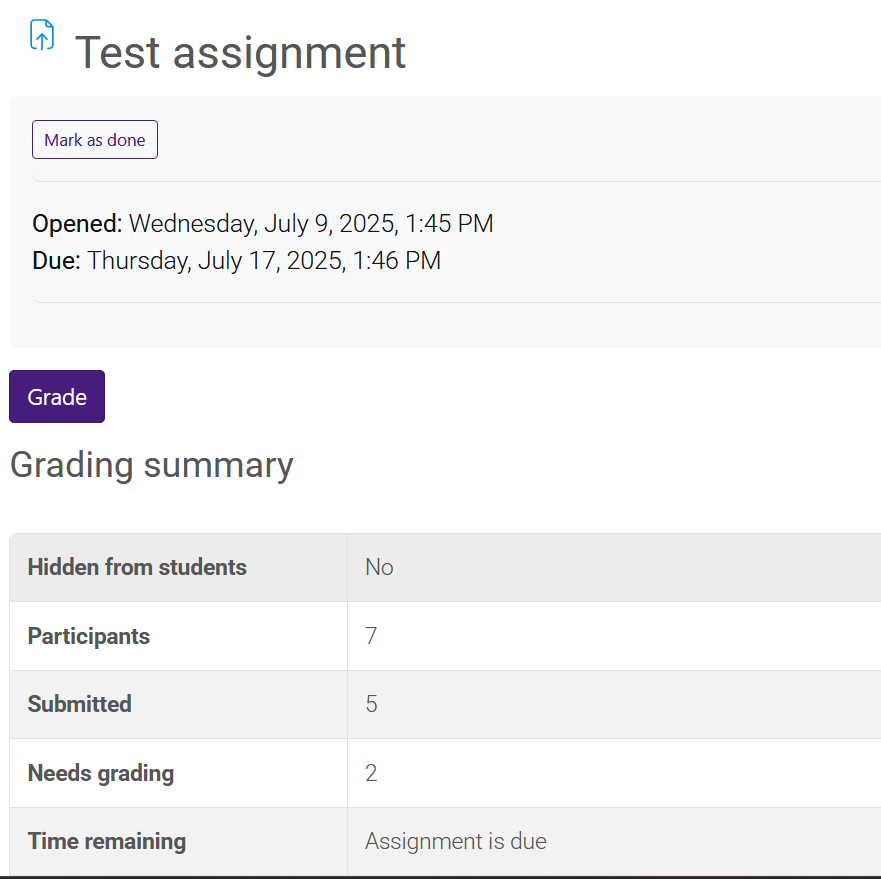
There are several ways to reach the grading summary page for an assignment:
- From the Reminders drawer in the sidebar
- From an email notification
- By clicking on the assignment activity card in the course
- Through the gradebook
- From the assignments submissions page
To reach the grading summary page through Reminders:
Log in to Moodle and click on the Reminders icon in the sidebar. The Reminders drawer will open and display what needs to be graded in the Grading box.
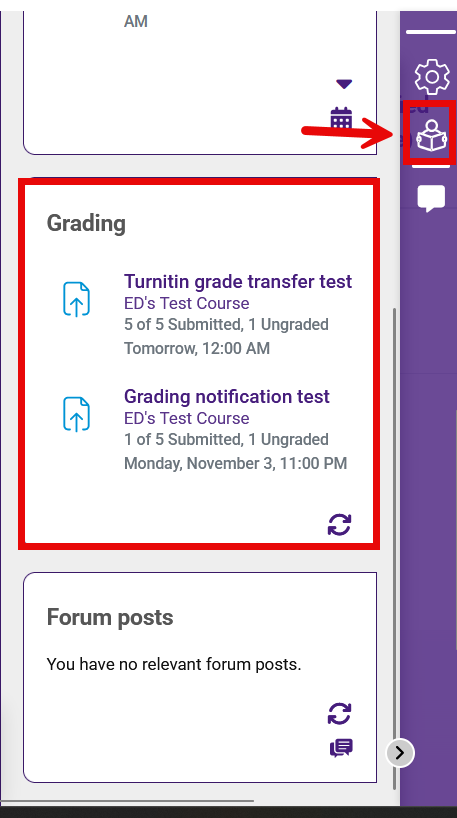
Click on the link to the assignment you want to grade. This will take you directly to the assignment grading summary screen.
To reach the grading summary page from an email notification:
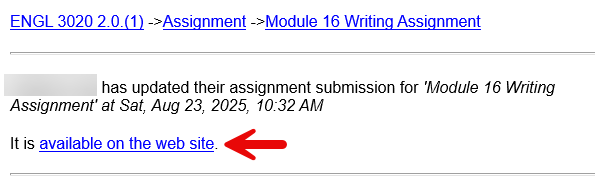
If you have submission notifications enabled in the assignment settings, you can click on the link in the email to reach the assignment screen.
To reach the grading summary page from the assignment activity card:
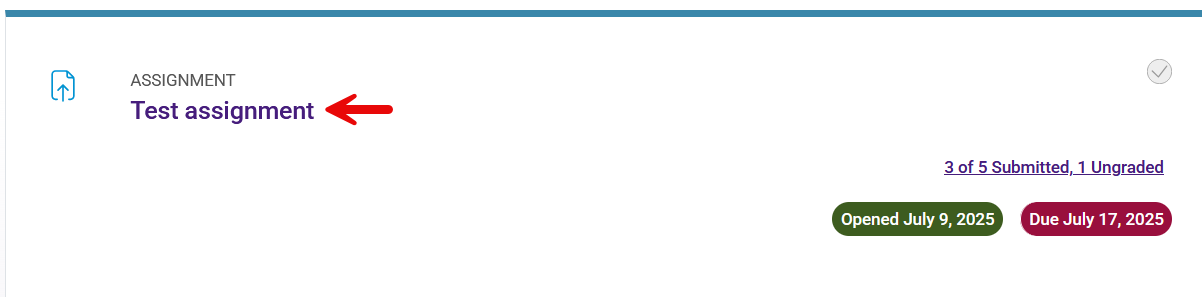
On the activity card, click on the name of the assignment to reach the grading summary page.
To reach the grading summary page from the gradebook:
In the gradebook table, click the name of the assignment at the top of the column. Note that there will only be a link here if the assignment was created as a Moodle activity, and not a manually created grade item.
To reach the grading summary page from the submissions page:
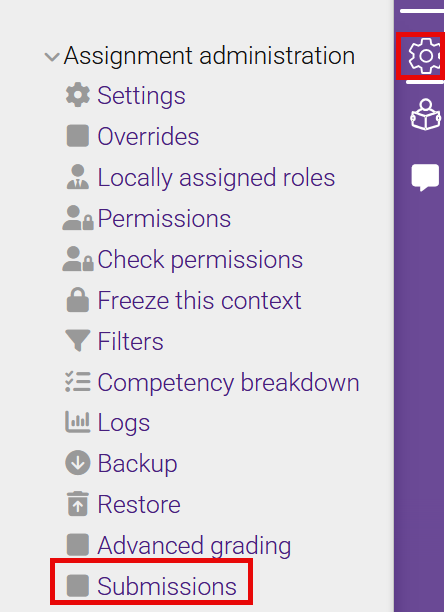
To reach the page that lists student submissions, open the sidebar and click on the gear icon to open the Assignment administration menu. Click the Submissions link at the bottom of that menu.
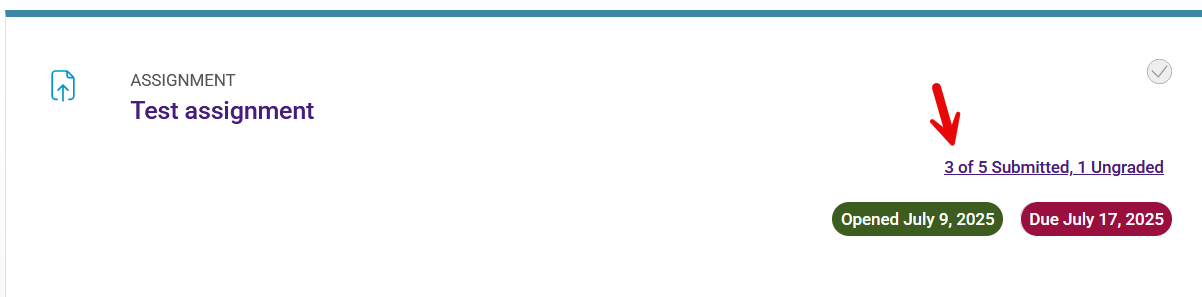
You can also reach the submissions page from the assignment activity card. Click on the link showing the number of submissions and items to be graded:
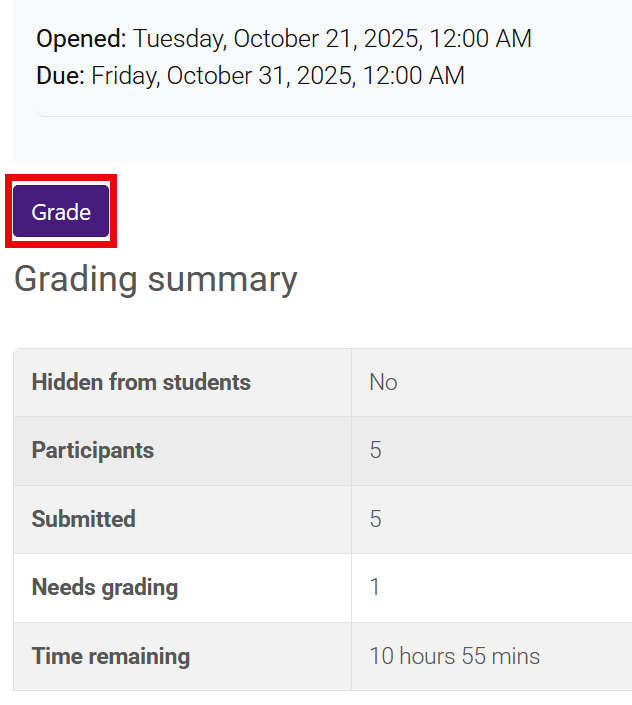
From the submissions page, you can reach the grading summary screen by selecting the Grade option in the three dots menu in the Grade column (if Quick Grading is turned off) or by clicking the Grade button at the top of the screen.

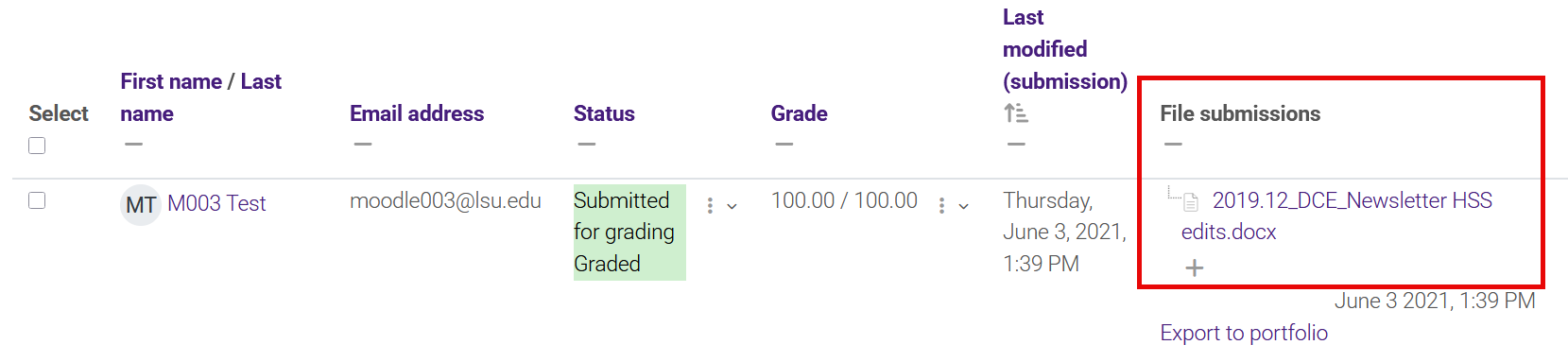
If the student uploaded a file as part of the submission, you will find it in the File submissions column. Click on the file link to download and open it on your computer.
Direct Grading from the Assignment Grading Summary Page
On the grading summary page, you can reach submissions directly by clicking the Grade button. This will bring you to the grading screen where you can cycle through submissions.
To find submissions that are not graded, open the Change user menu and select a student with an asterisk (*) next to their name.
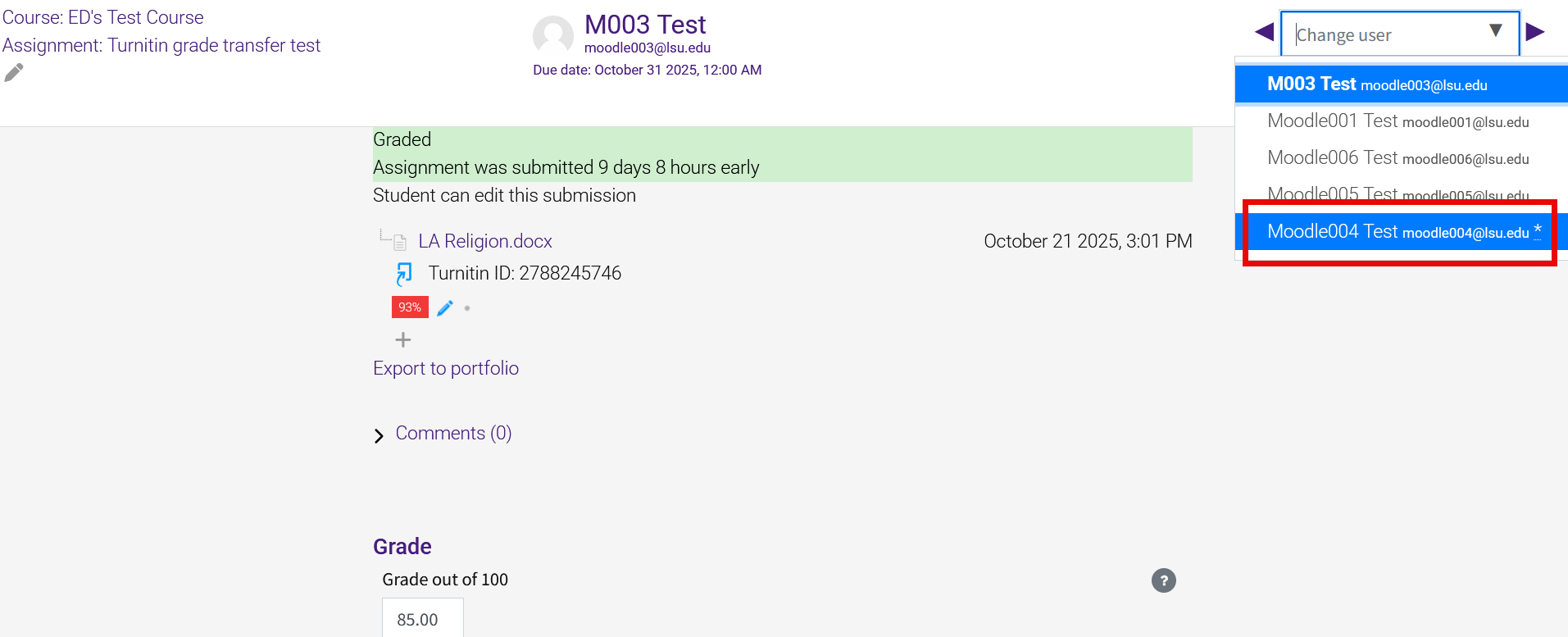
When you are ready to save a grade and feedback, type in or select the grade and enter the feedback. Click either Save changes or Save and show next if there are more students to grade. Always check the gradebook to ensure that grades have been saved.
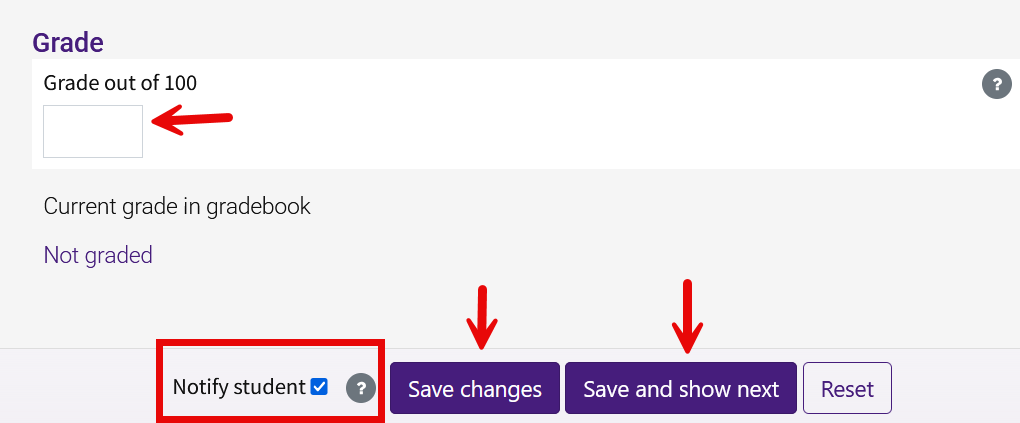
The box next to Notify student is checked by default. This will send an email notifying the student that their work has been graded. If you remove the check, let your students know when to check their grades, since they will not be notified.
Quick Grading from the Submissions Page
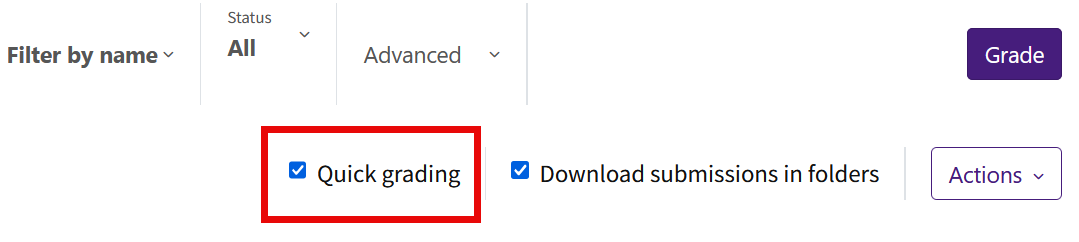
Quick grading is a way to grade several submissions at once from the assignment submissions page. To enable this, check the box next to Quick grading at the top of the page.
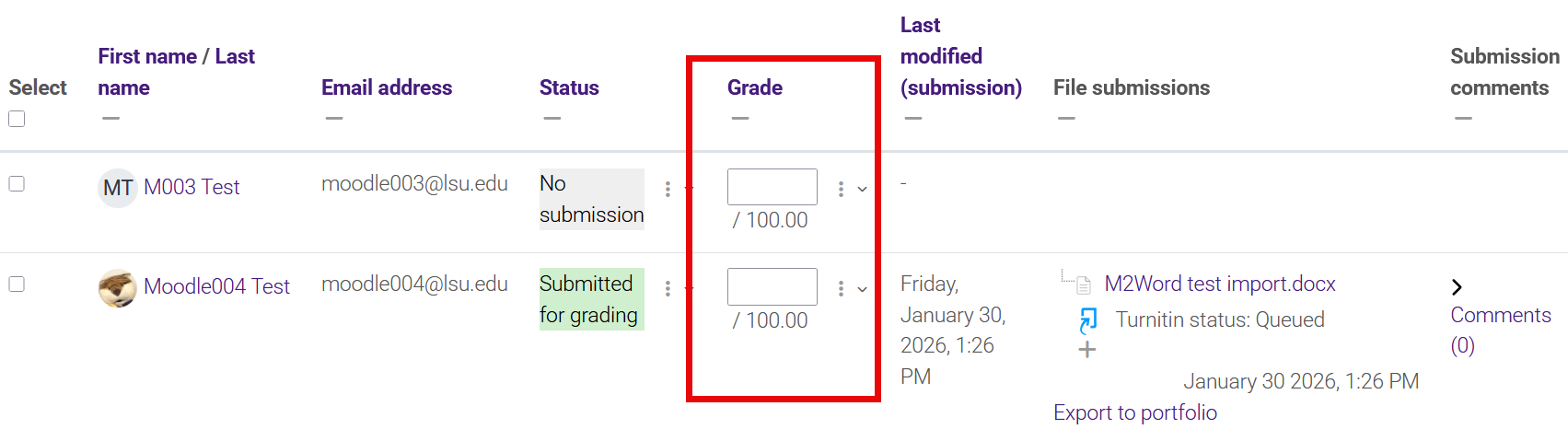
The page will reload with text boxes added to the Grade column of the submission table. Enter a number directly into the text box for each student you want to grade. You do not have to grade all students at one time.
When you are finished entering grades, you must save them. Grades are not saved automatically. At the bottom of the screen in the floating menu, click the Save button to save all quick grading changes. Note that the Notify students check box is located next to the save button.

If you are having trouble finding a student's submission, type the student's name in the Search users box or check the filters at the top of the submissions page. Submissions can be filtered by name, submission status, or enrollment status. To see all active students in your class, whether they have submitted or not, click the Clear all link to reset filters.
Grading from the Gradebook
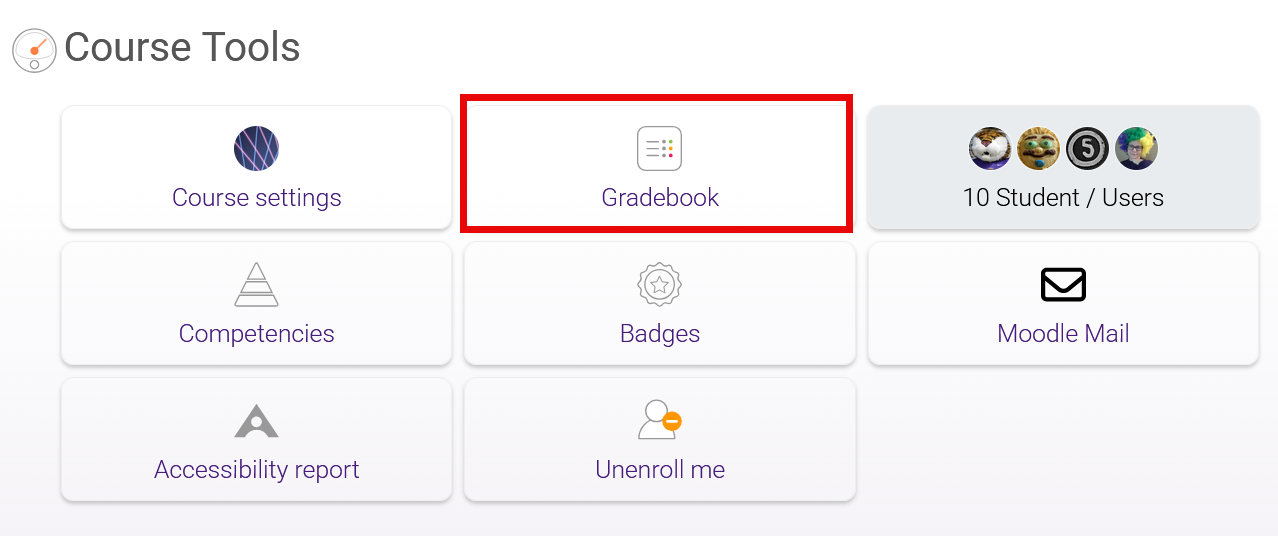
- From Course Tools, click on Gradebook.
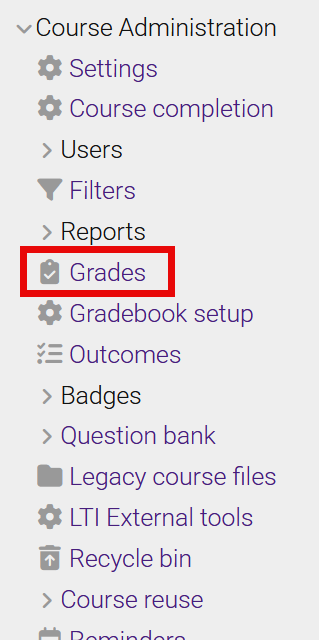
Alternatively, you can click on Grades in the Course Administration menu.
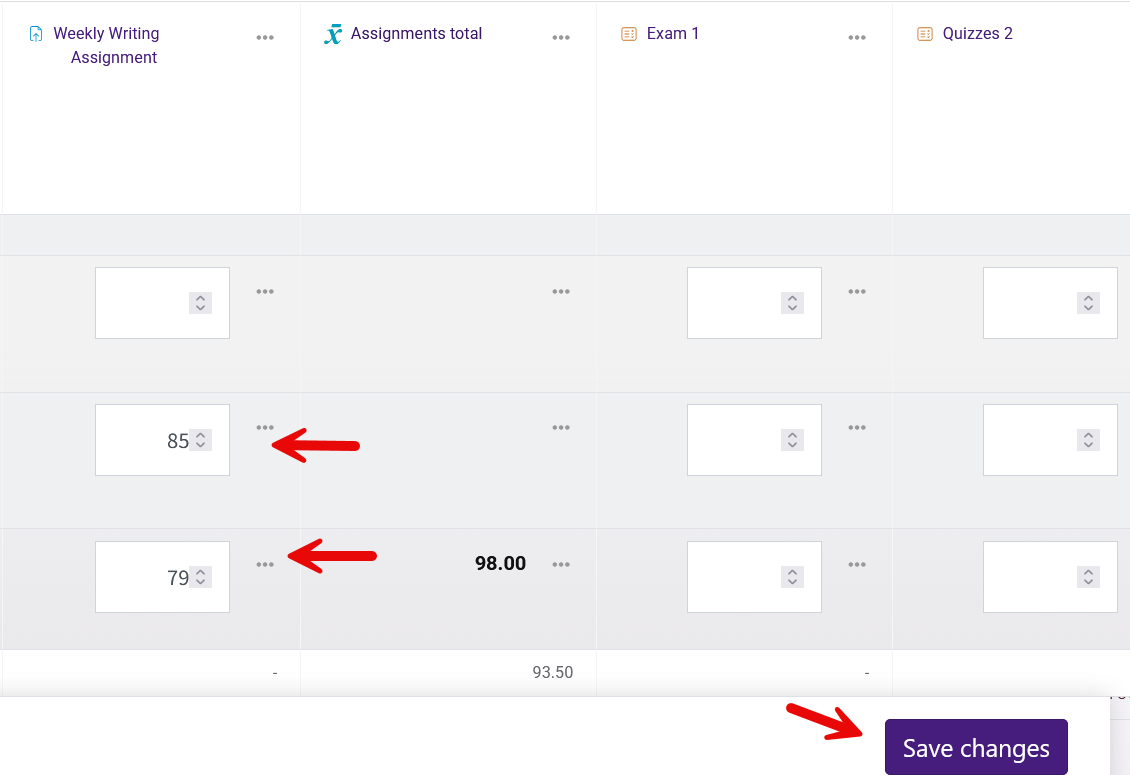
- Toggle on Edit mode in the top right corner of the page. Text boxes will appear inside the grade sheet for each graded item.
- Enter the numerical grades in the text boxes for the items you want to grade and click Save changes at the bottom of the screen to save the grade.
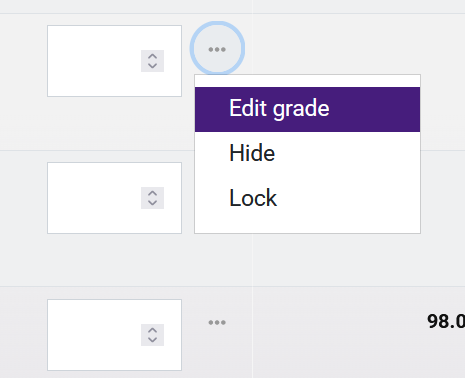
If you are leaving feedback text or files, click the three-dots menu next to the text box and click Edit grade to open the full grading screen.
To enter the grade and/or feedback, check the box next to Overridden. If you do not check this box, you will not be able to enter a grade or feedback.
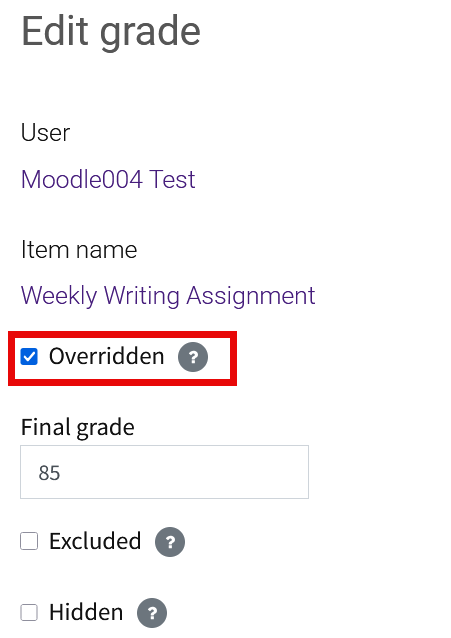
Be sure to then Save changes on that screen.
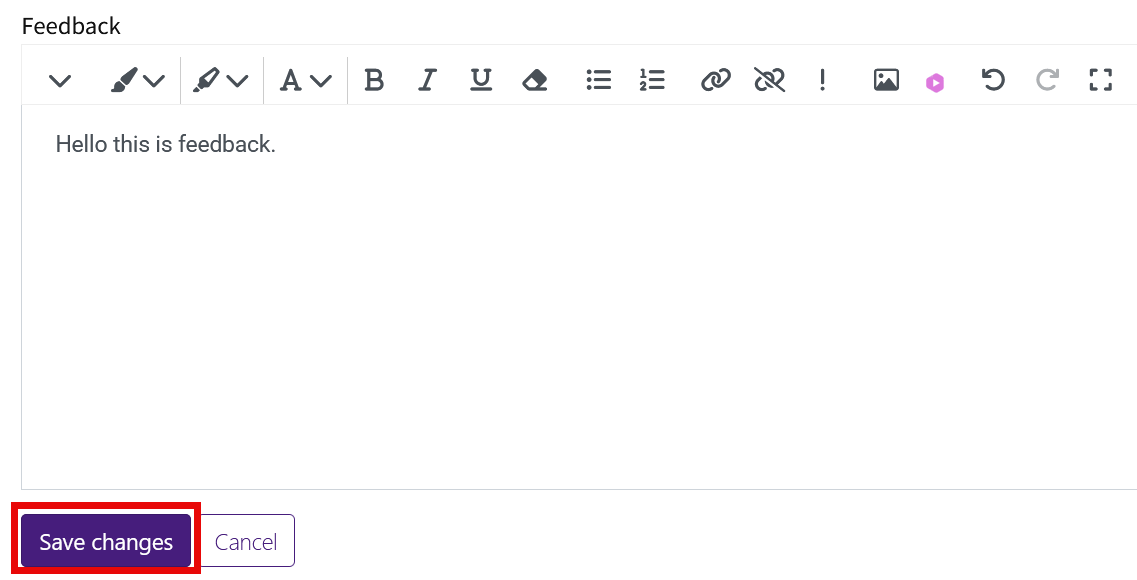
Note that the feedback will appear to students in the Student Gradebook. It will not show in the assignment screen.
- Return to the gradebook screen to verify the grade. When grades are entered through the gradebook, the cell becomes shaded yellow or orange because they are considered overridden. If feedback is present, an asterisk (*) will also appear in the cell.
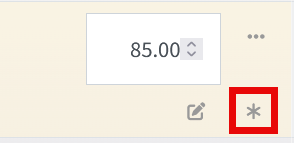
Note that if an item is graded through the gradebook, any changes to grades through the Assignment activity will not be reflected in the gradebook. To change this, go back to the shaded cell (editing must be turned on) in the gradebook and reenter the Edit grade screen. On that screen, uncheck the box next to Overridden and Save changes.
Advanced Grading Methods
Instructors can add a rubric or grading guide to an assignment to simplify the grading process. These are fillable forms that standardize grades for all students in a course. These forms are useful for justifying given grades and providing a detailed breakdown of a student's performance.
There are two types of advanced grading: the rubric and the grading guide. Before the advanced grading menu is visible, the instructor must first select one of these two methods in the assignment settings under Grade and then Grading method:
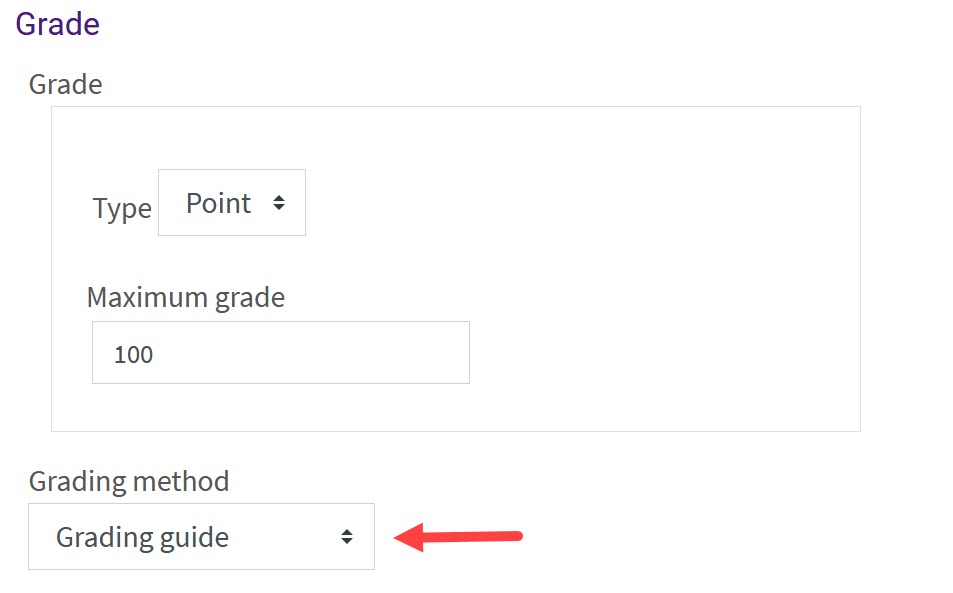
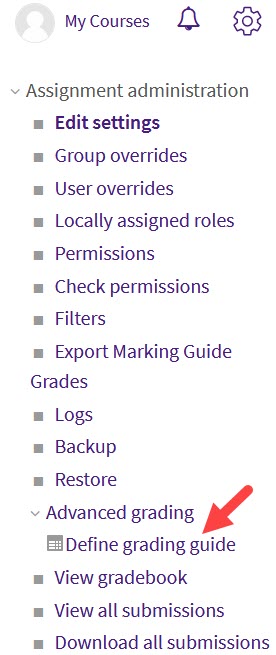
Once the grading method is set to either rubric or grading guide, the Advanced grading menu is available in the Assignment administration menu in the sidebar. In the administration menu, open Advanced grading and click the link there to define criteria and possible points for the rubric or grading guide.
For more information about the difference between the two methods and how to enter criteria, see MoodleDocs: Advanced grading methods.