Moodle: How to Create Groupings
A grouping is a collection of groups in a Moodle course that can be used to manage which groups of students see or use specific activities and resources.
Students are enrolled in groups based on course section information. Because of this default group setting, it is recommended that for any additional groups a grouping is created to contain the custom groups. The grouping allows activity settings to be applied at the grouping level, such as allowing group submissions or restricting forum chats to within a group.
To Create Groupings in Moodle:
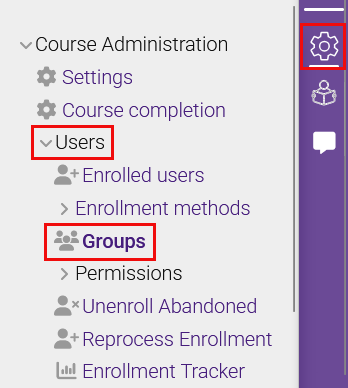
- Open the Course administration gear icon in the selected course. In that menu, click on Users, then click on Groups.
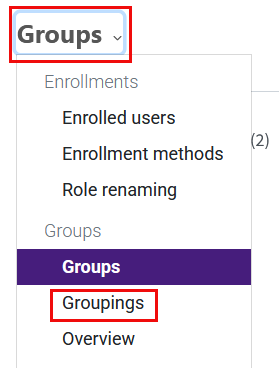
- The group management tool will open. Click on Groups in the upper left to access a drop-down menu, then select Groupings.
- On the Groupings page, click the Create grouping button at bottom. The steps for creating groups and groupings are nearly identical, so be sure that you are in the groupings section when initiating this process.
-
Enter a Grouping name that clearly identifies the groups within (for example, "Group Project”).
Optional settings: Enter a Grouping description.
-
Select Save changes.
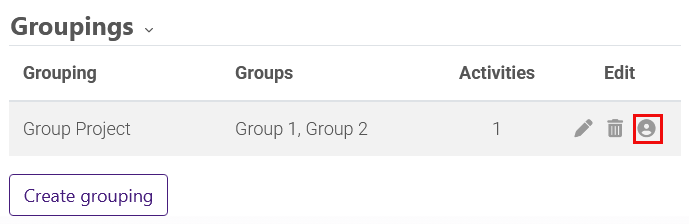
- When finished, your grouping(s) will be shown along with their groups (none on creation), the number of activities with this grouping selected in the common module settings, and an edit tool icon, delete icon, and show groups in grouping icon on the far right. Click the torso icon to begin adding groups to your grouping.
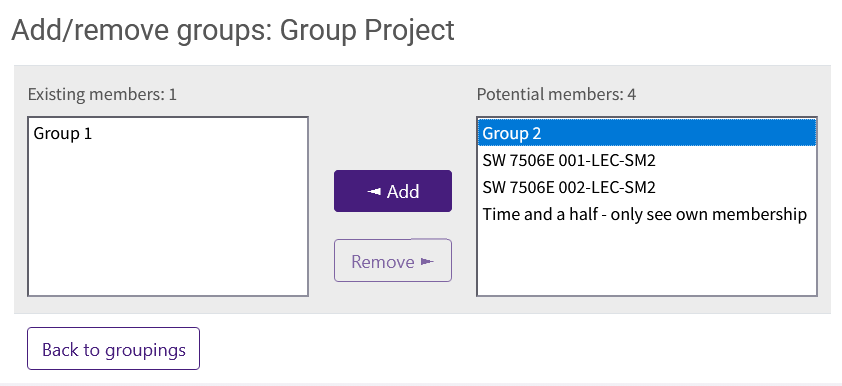
- Here again, the process of adding groups to groupings is nearly identical to that of adding members to groups. However, you will know you are on the correct screen because all of the potential members (shown initially on the right side) will be names of groups and not names of individuals. Simply click on the available groups on the right side and then click the Add button to add them to your grouping on the left. When done, click the Back to groupings button at the bottom of the screen (there is no Save Changes button on this screen).
Related GROK articles
20242
3/17/2026 3:40:09 PM