Wireless: Troubleshooting eduroam “Can’t connect to this network”
On Windows 11, some users get the message “Can’t connect to this network” immediately after entering in their credentials and click Connect on eduroam.
Furthermore, the icon for the eduroam wireless network looks like this:
o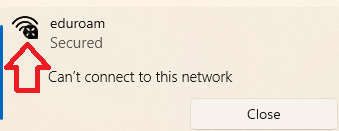
To Resolve "Can't Connect to This Network" Error:
- Go to Settings (not Control Panel), choose Network & Internet, then select Wi-Fi.
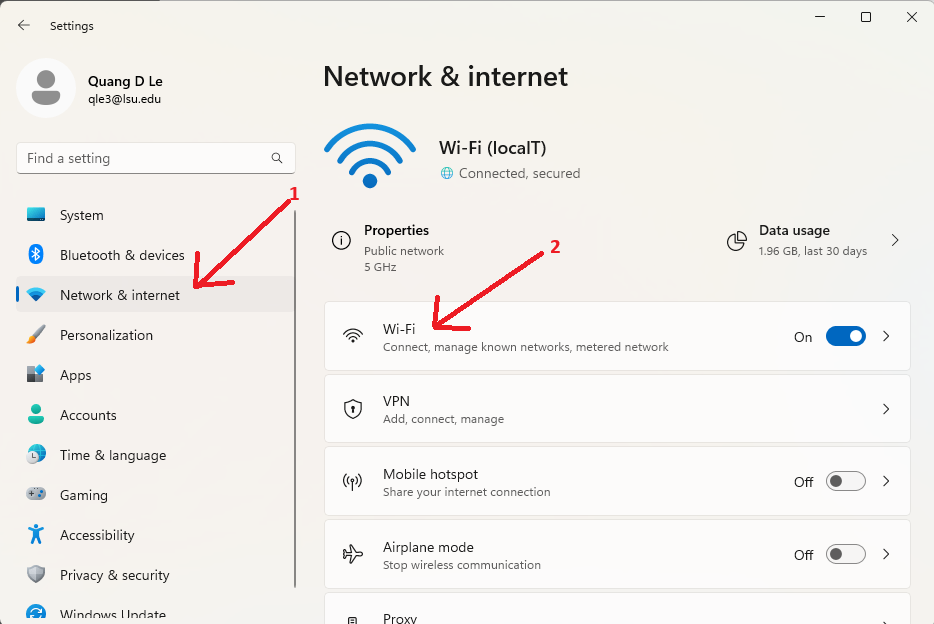
- Under the Wi-Fi section, click on Manage known networks. Find eduroam on the list of known networks and click the Forget button.
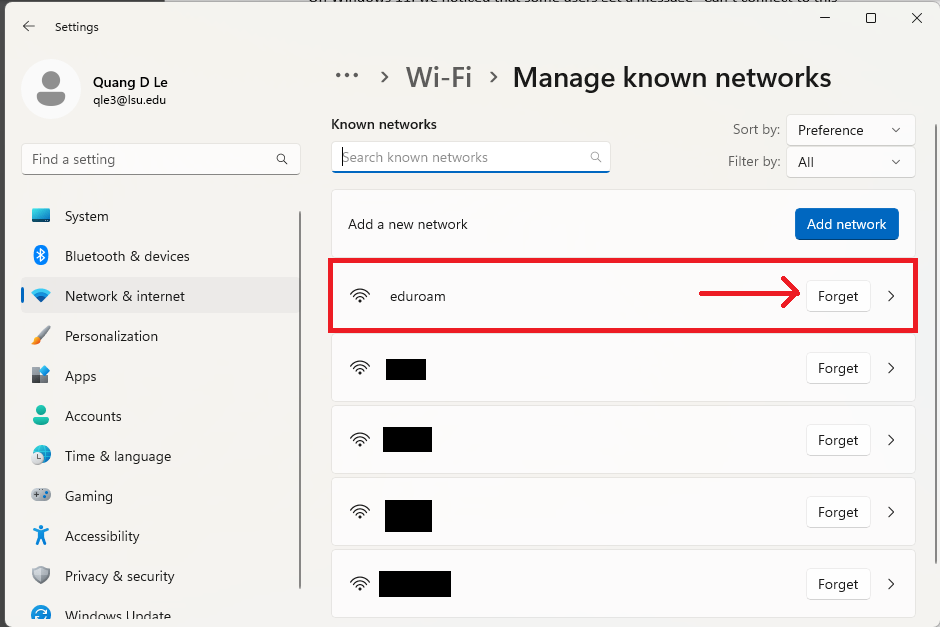
- After forgetting the eduroam network, click on the blue Add network button:

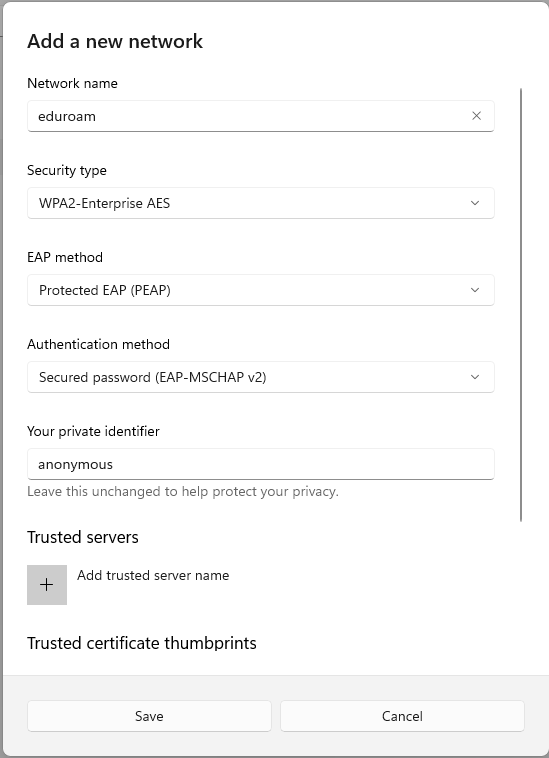
- In the Add a new network window, enter the following information as it is shown below. It must be exactly as shown, or the connection will not be successful.
- Network name: eduroam
- Security Type: WPA2-Enterprise AES
- EAP Method: Protected EAP
- Authentication method: Secured password (EAP-MSCHAP v2)
- Leave everything else as-is and click the Save button.
- After manually adding the eduroam network in the steps above, connect to eduroam again. Please remember to include the @lsu.edu to the end of your myLSU ID (example: mtiger1@lsu.edu)
20699
12/16/2025 2:29:45 PM